
Tag: Galaxy Note 2
-
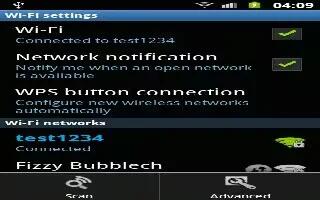
How To Use WPS On Samsung Galaxy Note 2
Learn how to use WPS Push button on Samsung Galaxy Note 2. The WPS (Wi-Fi Protected Setup) feature (sometimes associated with physical on most WAPs)
-
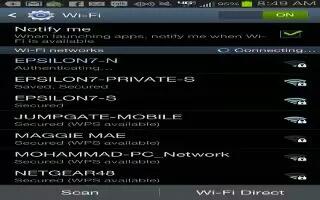
How To Customize Wi-Fi Settings On Samsung Galaxy Note 2
This section describes the Wi-Fi settings on Samsung Galaxy Note 2. In a single motion touch and slide the Wi-Fi slider to the right to turn it on.
-
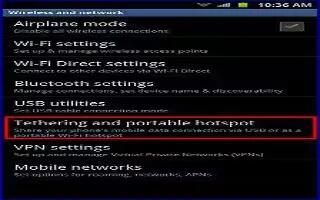
How To Use Mobile HotSpot On Samsung Galaxy Note 2
The Mobile HotSpot feature allows you to turn your Samsung Galaxy Note 2 into a Wi-Fi hotspot. The feature works best when used in conjunction
-
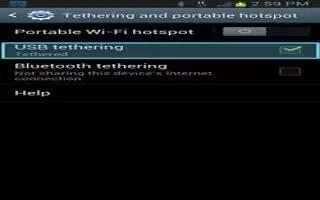
How To Use USB Tethering On Samsung Galaxy Note 2
The USB Tethering option allows you to share your devices mobile data connection via a direct USB connection between your Samsung Galaxy Note 2
-
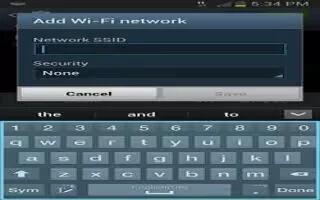
How To Use Wi-Fi On Samsung Galaxy Note 2
Learn how to use Wi-Fi on Samsung Galaxy Note 2. Wi-Fi (short for “wireless fidelity”) is term used for certain types of Wireless Local Area Networks
-

How To Connect Samsung Galaxy Note 2 To PC Via Kies Air
Kies air allows you to sync your Windows PC wirelessly with your Samsung Galaxy Note 2 provided they are both on the same Wi-Fi network.
-
How To Connect Samsung Galaxy Note 2 To PC Via Kies
You can connect Samsung Galaxy Note 2 to Computer using Kies. Kies allows you to manage music, movies and photos on Samsung Galaxy Note 2.
-
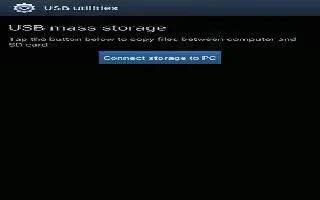
How To Connect Samsung Galaxy Note 2 To Computer
You can connect your Samsung Galaxy Note 2 to a PC using an optional PC data cable using various USB connection modes. You can connect your device
-
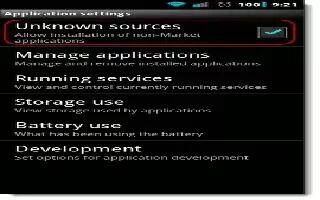
How To Enable Downloading For Web App On Samsung Galaxy Note 2
You can enable downloading for web applications on Samsung Galaxy Note 2. Before you can download web a application you must insert SD into the phone
-
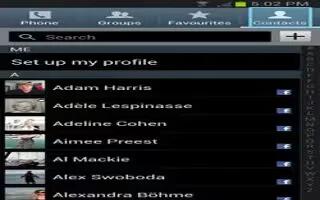
How To Send Contacts Via Bluetooth On Samsung Galaxy Note 2
On Samsung Galaxy Note 2 depending on your paired devices settings and capabilities, you may be able to send pictures, Contact information, or other
-
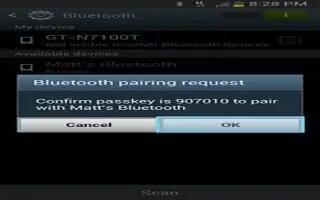
How To Pair Bluetooth Devices On Samsung Galaxy Note 2
The Bluetooth pairing process allows you to establish trusted connections between your Samsung Galaxy Note 2 and another Bluetooth device.
-
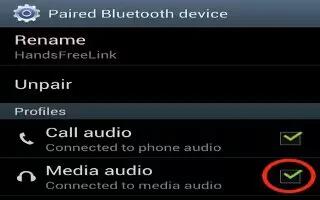
How To Configure Bluetooth Device Settings On Samsung Galaxy Note 2
You can configure Bluetooth Device Settings on Samsung Galaxy Note 2. Some connected Bluetooth devices are capable of more than just functioning
-
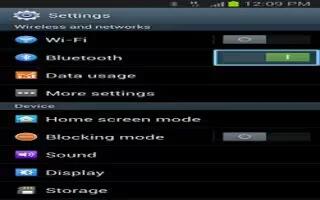
How To Use Bluetooth On Samsung Galaxy Note 2
Learn how to use Bluetooth on Samsung Galaxy Note 2. Bluetooth is a short-range communications technology that allows you to connect wirelessly
-
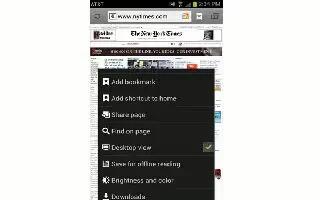
How To Customize Browser Settings On Samsung Galaxy Note 2
Learn to customize browser settings on Samsung Galaxy Note 2. From the Home screen, tap Apps > Internet icon. Press Menu key and then tap Settings.
-

How To Use Bookmarks On Samsung Galaxy Note 2
While navigating a website, you can bookmark a site to quickly and easily access it at a future time on Samsung Galaxy Note 2.
-
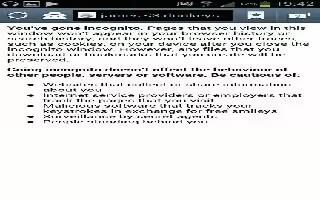
How To Use Going Incognito On Samsung Galaxy Note 2
The incognito feature on Samsung Galaxy Note 2 allows you to view Internet sites outside of the normal browsing. Pages viewed in this incognito
-
How To Use Internet Browser On Samsung Galaxy Note 2
Your Samsung Galaxy Note 2 is equipped with a Google browser to navigate the mobile web. This section explains how to navigate the browser
-
How To Use YouTube On Samsung Galaxy Note 2
YouTube is a video sharing website on which users can upload and share videos, and view them in MPEG-4 format on Samsung Galaxy Note 2.


