How To Backup And Reset – Samsung Galaxy Note Pro
Learn how to backup and reset on your Samsung Galaxy Note Pro. You can back up your data to the Google server and reset your device to its factory defaults.
Apple, Gadgets, Android, Microsoft
Learn how to backup and reset on your Samsung Galaxy Note Pro. You can back up your data to the Google server and reset your device to its factory defaults.

Learn how to use Speech Settings on your Samsung Galaxy Note Pro. Set voice search and text-to-speech options.

Learn how to configure Handwriting Recognition Settings on your Samsung Galaxy Note Pro. This menu allows you to configure the language.
Learn how to use Google Voice Typing on your Samsung Galaxy Note Pro. Hide words many people find offensive are in results of Google voice searches.
Learn how to configure Swype Settings on your Samsung Galaxy Note Pro. Swype is a new way to enter text on touch screens. Use finger to trace.

Learn how to use Samsung Keyboard on your Samsung Galaxy Note Pro. Complete or replace the word you are typing with the most probable word.

Learn how to configure Language And Input Settings on your Samsung Galaxy Note Pro. Set the language used by your device.

Learn how to use Device Administrator on your Samsung Galaxy Note Pro. Enabling this option causes your tablet and personal data to be more.

Learn how to Set Up SIM Card Lock on your Samsung Galaxy Note Pro. As a security measure, you can choose to lock the SIM card.

Learn how to make Passwords Visible on your Samsung Galaxy Note Pro. When enabled, password characters display briefly as you touch them.

Learn how to Encrypt on your Samsung Galaxy Note Pro. To require a numeric PIN or password to decrypt your tablet each time you power it on.
Learn how to use password options on your Samsung Galaxy Note Pro. The options are available when Password is selected.

Learn how to use pin options on your Samsung Galaxy Note Pro. The options are available when PIN is selected:
Learn how to use Pattern Options on your Samsung Galaxy Note Pro. The options are available when Pattern is selected:
Learn how to use Signature Options on your Samsung Galaxy Note Pro. The options are available when Signature Unlock is selected:

Learn how to use Swipe Options on your Samsung Galaxy Note Pro. It includes Lock screen card, shortcuts, unlock effect and ink effect etc.

Learn how to use Lock Screen Settings on your Samsung Galaxy Note Pro.You can use swipe, signature, pattern, pin and password etc.
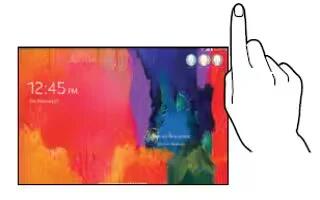
Learn how to use user profiles on your Samsung Galaxy Note Pro. Shared this tablet with multiple people by creating User accounts and Profiles.