How To Backup And Restore – Samsung Galaxy Tab 4
Learn how to Backup and restore on your Samsung Galaxy Tab 4. The Back up and reset settings allow you to back up your data, back up accounts automatically restore.
Apple, Gadgets, Android, Microsoft
Learn how to Backup and restore on your Samsung Galaxy Tab 4. The Back up and reset settings allow you to back up your data, back up accounts automatically restore.
Learn how to use Samsung account on your Samsung Galaxy Tab 4. Several applications and options require that you create and sign in to a Samsung Account.
Learn how to configure Google accounts on your Samsung Galaxy Tab 4. Configure options for Google accounts and privacy settings.
Learn how to Sync Accounts on your Samsung Galaxy Tab 4. Select the items you want to synchronize on your account such as Books, Calendar, Contacts, and more.
Learn how to use manage accounts on your Samsung Galaxy Tab 4. Use this option to set up, manage, and synchronize accounts, including your Google and email accounts.
Learn how to customize smart screen on your Samsung Galaxy Tab 4. This options allow you to customize your screen settings to make the screen more responsive.
Learn how to use palm motion on your Samsung Galaxy Tab 4. Palm motion allows you to control your device by touching your screen with the palm of your hand.
Learn how to use voice search on your Samsung Galaxy Tab 4. Use this menu to set the speech settings for Voice input.
Learn how to configure Google Voice Typing on your Samsung Galaxy Tab 4. You can change input language and block offensive words.
Learn how to configure Swype Settings on your Samsung Galaxy Tab 4. Swype is a new way to enter text on touch screens.
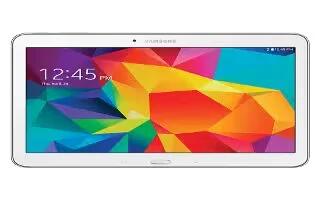
Learn how to use Samsung keyboard on your Samsung Galaxy Tab 4. Complete or replace the word you are typing with the most probable word.
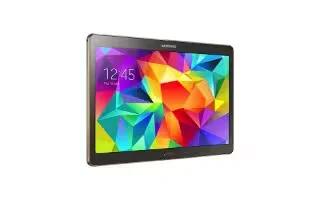
Learn how to use WiFi on your Samsung Galaxy Tab S. Connect the device to a Wi-Fi network to use the Internet or share media files with other devices.
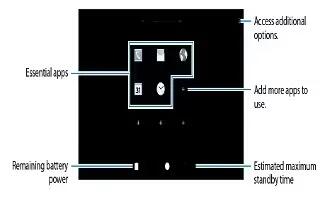
Learn how to use power saving mode on your Samsung Galaxy Tab S. Save the battery power by limiting the devices functions.
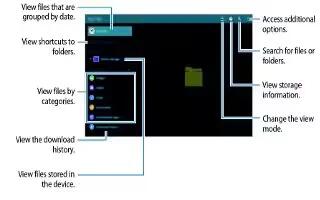
Learn how to use my files on your Samsung Galaxy Tab S. Use this app to access various files stored in the device or in other locations, such as cloud storage services.
Learn how to enter text using Samsung keyboard on your Samsung Galaxy Tab S. A keyboard appears automatically when you enter text to send messages and more.
Learn how to use language and input settings on your Samsung Galaxy Tab 4. Use this menu to configure the language used to display text on your phone.
Learn how to use blocking mode on your Samsung Galaxy Tab 4. When Blocking mode is enabled, notifications for selected features are disabled.
Learn how to use accessibility settings on your Samsung Galaxy Tab 4. Accessibility services are special features to make using the device easier.