How To Take Screenshot – Samsung Galaxy Tab 4
Learn how to take Screenshot on your Samsung Galaxy Tab 4. Touch and hold the Power/Lock Key and Home Key to capture and save an image of the current screen.
Apple, Gadgets, Android, Microsoft
Learn how to take Screenshot on your Samsung Galaxy Tab 4. Touch and hold the Power/Lock Key and Home Key to capture and save an image of the current screen.
Learn how to use Smart Screen on your Samsung Galaxy Tab 4. With Smart screen activated your phone automatically adjusts screen time-out and rotation.
Learn how to use motions on your Samsung Galaxy Tab 4. By activating the various motion and gesture features, you can access a variety of time.
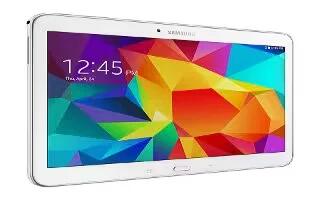
Learn how to Navigate on your Samsung Galaxy Tab 4. Use command buttons and the touch screen to navigate.
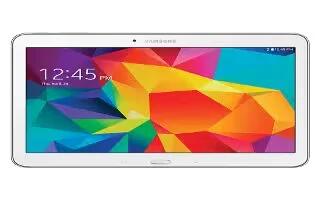
Learn how to Lock And Unlock on your Samsung Galaxy Tab 4. From the Lock screen, touch and swipe one of the app shortcut icons to launch that application.
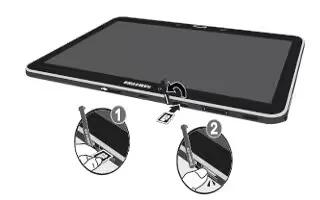
Learn how to Insert Memory Card on your Samsung Galaxy Tab 4. Your device supports removable microSD or microSDHC memory cards with maximum capacities.
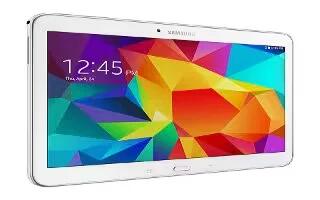
Learn how to Create Google Account on your Samsung Galaxy Tab 4. In order to utilize your device to the fullest extent, you will need to create a Google Account.
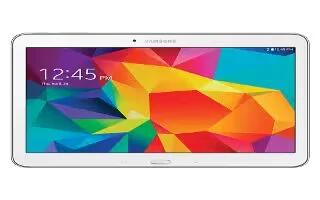
Learn how to Create Samsung Account on your Samsung Galaxy Tab 4. An active Samsung account is required to begin accessing various Samsung applications.
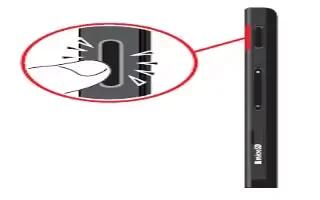
Learn how to setup on your Samsung Galaxy Tab 4. When you first turn on your device, you are asked to set up a few things.
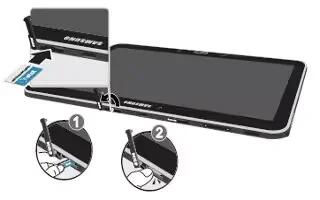
Learn how to Insert SIM Card on your Samsung Galaxy Tab 4. When you subscribe to a cellular network, you are provided with a plug-in SIM card loaded.
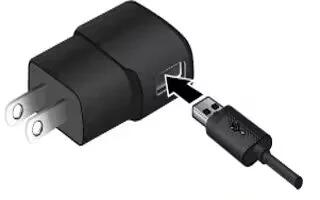
Learn how to Charge Battery on your Samsung Galaxy Tab 4. Your device is powered by a rechargeable, standard Li-Ion battery.
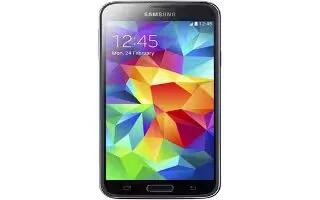
Learn how to take Screenshot on your Samsung Galaxy S5. You can capture the screen without using any third party apps.
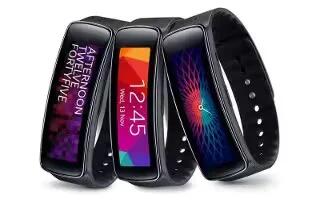
Learn how to use Gear Fit Info on your Samusng Gear Fit Info. On the Home screen, tap Settings > Gear Fit info.
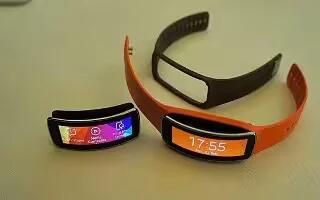
Learn how to Reset on your Samsung Gear Fit. Reset settings to the factory default values and delete all data. Default applications are not deleted.
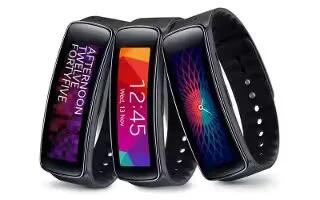
Learn how to use Privacy Lock on your Samsung Gear Fit. Scroll left or right on the Home screen.
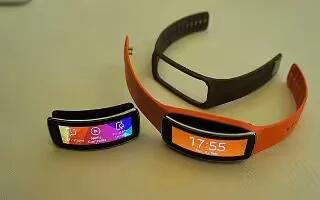
Learn how to configure Bluetooth Settings on your Samsung Gear Fit. Configure settings for the Bluetooth feature.
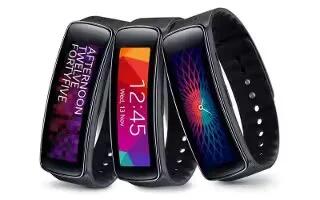
Learn how to use display settings on your Samsung Gear Fit. Change the clock type that displays on the Clock screen.
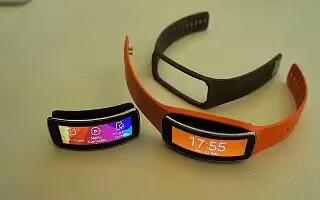
Learn how to Find My Device on your Samsung Gear Fit. Use this application to find the connected mobile device.