How To Use Contacts Display Options – Samsung Galaxy Tab 4
Learn how to use Contacts Display Options on your Samsung Galaxy Tab 4. There are various ways to display your Contacts and general Contacts settings.
Apple, Gadgets, Android, Microsoft
Learn how to use Contacts Display Options on your Samsung Galaxy Tab 4. There are various ways to display your Contacts and general Contacts settings.
Learn how to use Contacts on your Samsung Galaxy Tab 4. Store contact information for your friends, family, and colleagues to quickly access information.
Learn how to use Accounts on your Samsung Galaxy Tab 4. With synchronization, information on your device is updated with any information is updated.
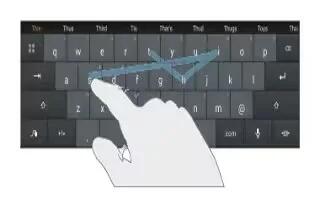
Learn how to Enter Text Using Swype on your Samsung Galaxy Tab 4. Swype is a text input method that makes it possible to enter a word by sliding.
Learn how to use Google Voice Typing on your Samsung Galaxy Tab 4. You can use your voice to enter text using the Google Voice typing feature.
Learn how to Enter Text Using Handwriting on your Samsung Galaxy Tab 4. You can enter text simply by using your finger to handwrite letters on your screen.
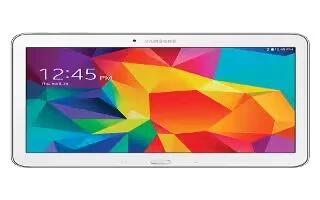
Learn how to configure Predictive Text on your Samsung Galaxy Tab 4. The Predictive Text option provides next-letter prediction and regional error correction.
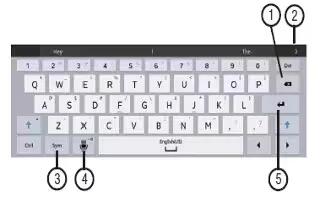
Learn how to Enter Text on your Samsung Galaxy Tab 4. It allows how to select the desired text input method when entering characters into tablet.
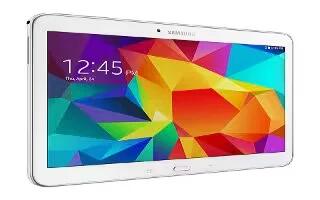
Learn how to customize Apps Screen on your Samsung Galaxy Tab 4. The Apps screen displays all applications installed on your wireless device.
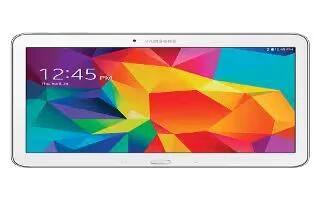
Learn how to Customize Multi Window on your Samsung Galaxy Tab 4. You can use Multi Window to run multiple apps on the same screen.
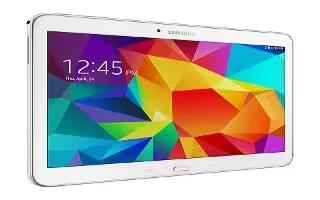
Learn how to use Multi Window on your Samsung Galaxy Tab 4. This feature can be used to run multiple applications on the current screen at the same time.
Learn how to use Wallpapers on your Samsung Galaxy Tab 4. You can choose a picture to display on the Home Screen, Lock screen, or on both the Home.
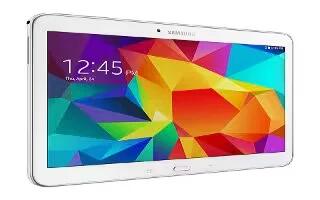
Learn how to Create Folders on your Samsung Galaxy Tab 4. Place Folders on a Home screen to organize items together.
Learn how to use App Shortcuts on your Samsung Galaxy Tab 4. Use App Shortcuts for quick access to applications or features, such as Email or other applications.
Learn how to use Widgets on your Samsung Galaxy Tab 4. When you first turn on your tablet, there are various widgets on the main Home screen.
Learn how to use Notifications on your Samsung Galaxy Tab 4. Notification icons appear on the Status Bar at the top of the screen to report new messages.
Learn how to customize home screen on your Samsung Galaxy Tab 4. Your device comes with seven Home screen panels.
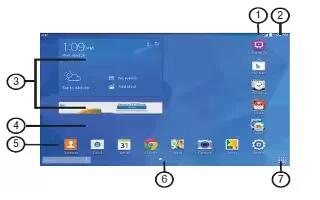
Learn how to use Home Screen on your Samsung Galaxy Tab 4. The Home screen is the starting point for using your device.