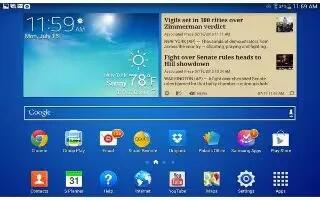
How To Use App Shortcuts – Samsung Galaxy Tab 3
Learn how to use App Shortcuts on your Samsung Galaxy Tab 3. Use App Shortcuts for quick access to applications or features, Email or apps.
Apple, Gadgets, Android, Microsoft
Learn how to use App Shortcuts on your Samsung Galaxy Tab 3. Use App Shortcuts for quick access to applications or features, Email or apps.
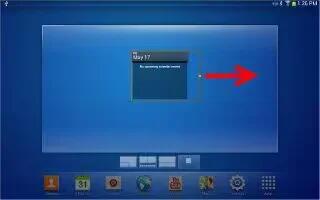
Learn how to use Widgets on your Samsung Galaxy Tab 3. When you first turn on your tablet, there are various widgets on center Home screen.
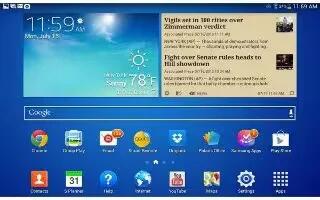
Learn how to navigate on your Samsung Galaxy Tab 3. Use command buttons and the touch screen to navigate. You can use command buttons.
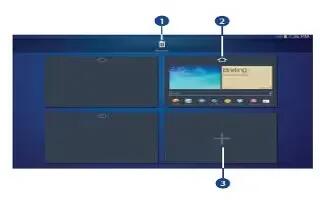
Learn how to use Home Screen Panels on your Samsung Galaxy Tab 3. Your device comes with seven Home screen panels and panels.
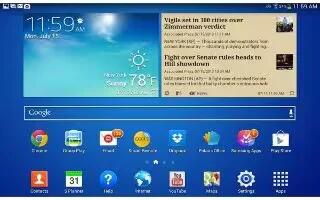
Learn how to customize Home Screens on your Samsung Galaxy Tab 3. You can add folders, wallpaper, add apps and widgets, pages to customize.
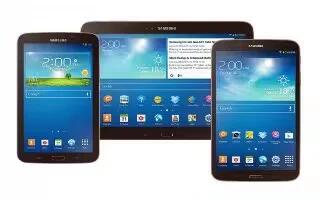
Learn how to use Home Screen on your Samsung Galaxy Tab 3. The Home screen is the starting point for using. Start with the device unlocked.
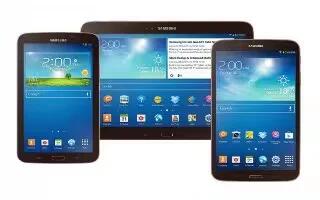
Learn how to reset on your Samsung Galaxy Tab 3. If your device has fatal errors, hangs up, or freezes, you reset the device regain functionality.
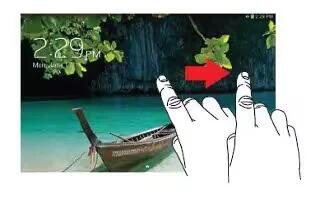
Learn how to lock and unlock on your Samsung Galaxy Tab 3. By default, the device locks automatically when the screen times out or manually.
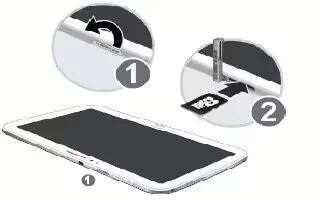
Learn how to insert Memory Card on Samsung Galaxy Tab 3. Your device supports removable microSD or microSDHC with maximum 64 GB.
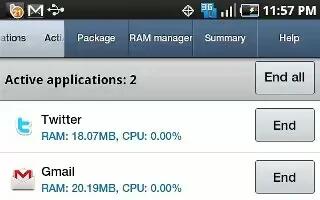
Learn how to use Task Manager on your Samsung Galaxy Tab 3. Your device can run applications simultaneously and some applications run.
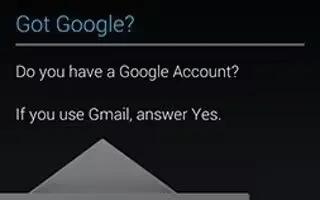
Learn how to create new Google account on your Samsung Galaxy Tab 3. In order to utilize your device to the fullest extent.
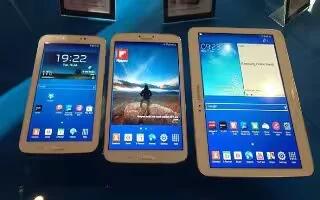
Learn how to setup your Samsung Galaxy Tab 3. When you first turn on your device, you are asked to set up a few things. Do the following.
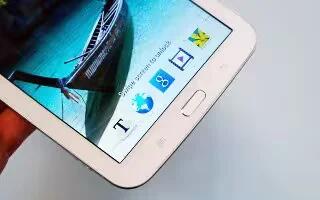
Learn how to switch on your Samsung Galaxy Tab 3. Your devices internal antenna is located top back. Do not block the antenna.
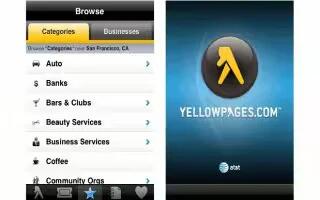
Learn how to use YPmobile on your Samsung Galaxy S4. The Yellowpages Mobile application provides quick and ready access to businesses, map locations,
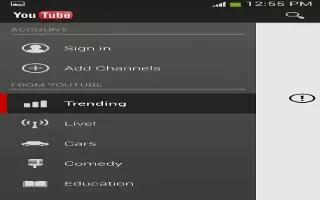
Learn how to use YouTube on your Samsung Galaxy S4. YouTube is a video sharing website on which users can upload and share videos.
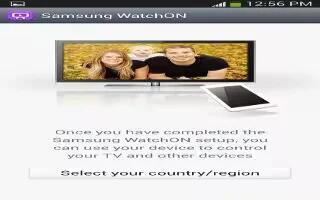
Learn how to use WatchON on your Samsung Galaxy S4. With the WatchON application, you can use your phone as a remote control for your TV.
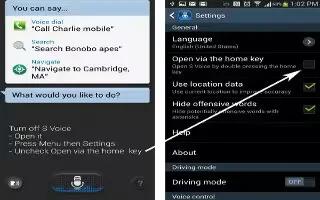
Learn how to use Voice Search on your Samsung Galaxy S4. The Google Voice Search application allows you to search the web using only your voice.
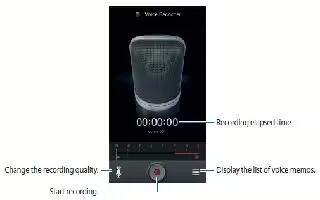
Learn how to use Voice Recorder on your Samsung Galaxy S4. The Voice Recorder allows you to record an audio file up to one minute long