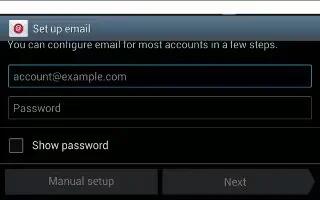
How To Use Email – Samsung Galaxy Tab 3
Learn how to use Email on your Samsung Galaxy Tab 3. Use Email to view and manage all email accounts in one apps. Configure mail account.
Apple, Gadgets, Android, Microsoft
Learn how to use Email on your Samsung Galaxy Tab 3. Use Email to view and manage all email accounts in one apps. Configure mail account.
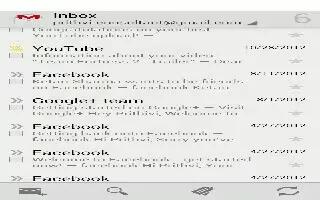
Learn how to use Gmail on your Samsung Galaxy Tab 3. Send and receive email with Gmail, Googles web-based email. Setup your Google account.
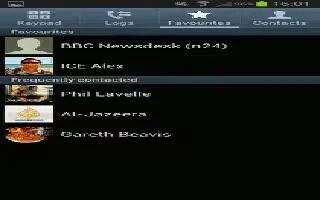
Learn how to use Favorites in contacts on your Samsung Galaxy Tab 3. Mark contact records with a gold star to identify them as favorites.
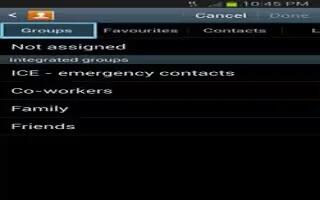
Learn how to use Groups in Contacts on your Samsung Galaxy Tab 3. Assign contacts to Groups to make searching for contacts faster or to quickly.
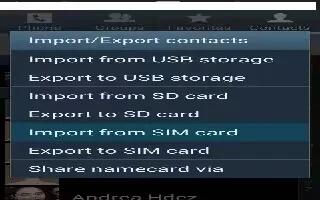
Learn how to import and export contacts on your Samsung Galaxy Tab 3. To back up and restore your contacts information, you can export contacts.
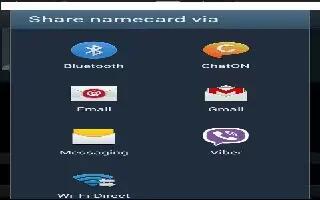
Learn how to share contacts information on your Samsung Galaxy Tab 3. You can send a contacts information by way of Bluetooth, email, Gmail.
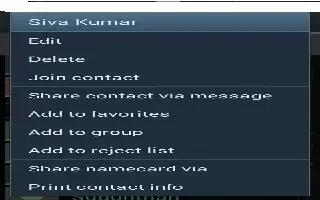
Learn how to join contacts on your Samsung Galaxy Tab 3. Your device can synchronize with multiple accounts, including Google, Corporate.
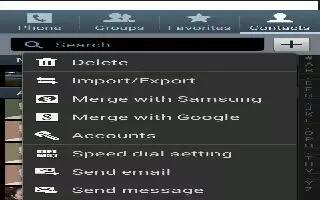
Learn how to use Contacts Display Options on your Samsung Galaxy Tab 3. There are various ways to display your Contacts and general.
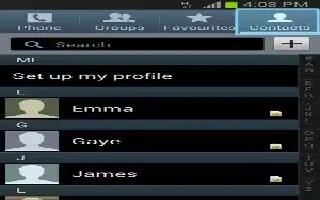
Learn how to use contacts on your Samsung Galaxy Tab 3. Store contact information for your friends, family, colleagues to quickly access.
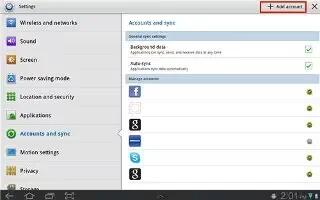
Learn how to use accounts on your Samsung Galaxy Tab 3. Your device can synchronize with a variety of accounts. With sync, info your device.
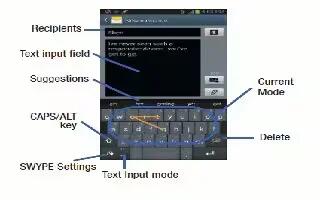
Learn how to use Swype on your Samsung Galaxy Tab 3. Swype is a new way to enter text on touch screens. Use finger to trace.
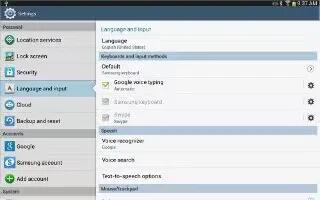
Learn how to use Google Voice Typing on your Samsung Galaxy Tab 3. You can use your voice to enter text using voice typing.
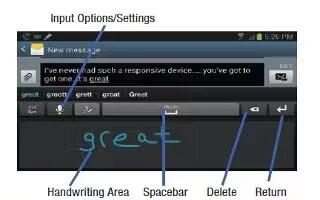
Learn how to use handwriting feature for entering text on your Samsung Galaxy Tab 3. You can enter text simply by using your finger.
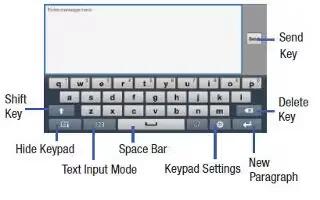
Learn how to enter text on your Samsung Galaxy Tab 3. This section describes how to select the desired text input method when entering.
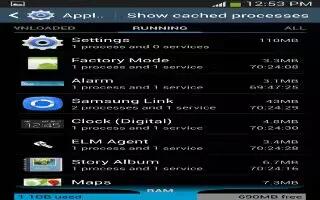
Learn how to use App information on your Samsung Galaxy Tab 3. To view information about an App, the amount of storage it uses, force App.
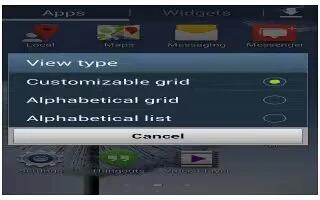
Learn how to use App Screen on your Samsung Galaxy Tab 3. The Apps screen displays all applications installed on your wireless device.

Learn how to use Wallpapers on your Samsung Galaxy Tab 3. You can choose a picture to display on the Home Screen, Lock screen.
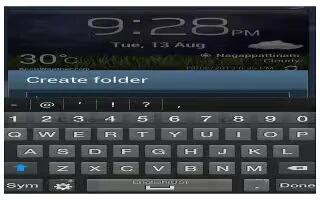
Learn how to create folders on your Samsung Galaxy Tab 3. Place Folders on Home screen to organize items together can add, manage and remove folder.