How To Enter Text On Sony Xperia Z
You can select from a number of keyboards and input methods to type text containing letters, numbers and other characters on your Sony Xperia Z.
Apple, Gadgets, Android, Microsoft
You can select from a number of keyboards and input methods to type text containing letters, numbers and other characters on your Sony Xperia Z.

You can open the settings menu from the Notification panel to adjust basic device settings on your Sony Xperia Z. For example, you can turn on Wi-Fi
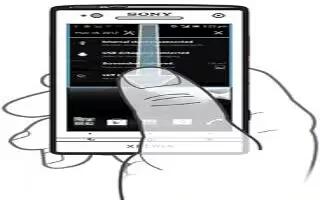
Learn how to use notifications on your Sony Xperia Z. The status bar at the top of your screen shows what’s going on in your device.
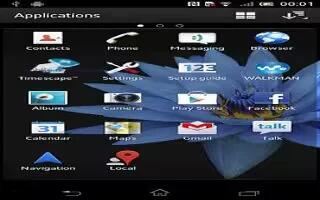
Learn how to use Applications Menu on your Sony Xperia Z. You can open a menu at any time when you are using an application.
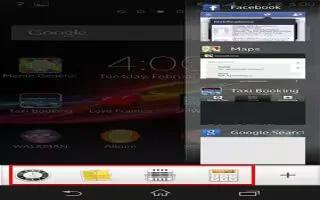
From the recently used applications window, you can get quick access to several small apps at any time using the small apps bar on Sony Xperia Z.
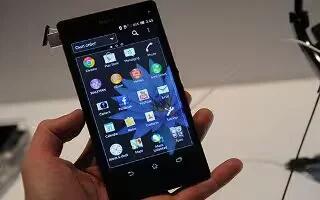
Learn how to access and use applications on your Sony Xperia Z. Open applications from shortcuts on Home screen or from the Application screen.

Customize the appearance of your Home screen and change the features you can access from it on your Sony Xperia Z. Change the screen background,
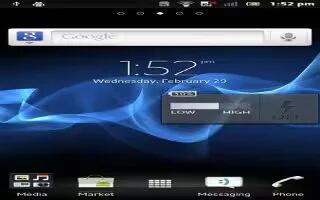
Widgets are small applications that you can use directly on your Home screen on your Sony Xperia Z. For example, the Music player widget allows
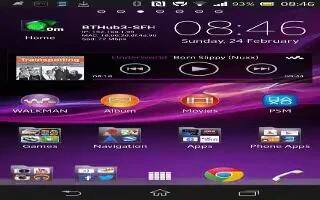
The Home screen is your gateway to the main features on your Sony Xperia Z. You can customize your Home screen with widgets, shortcuts, folders,
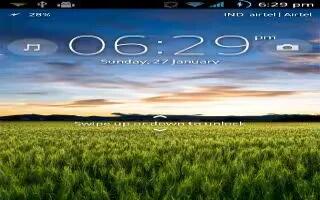
On the lockscreen, you can play tracks, take photos and record videos without unlocking the screen on Sony Xperia Z. To activate the screen,

Learn how to Zoom, scroll, and flick on your Sony Xperia Z. Place two fingers on the screen at once and pinch them together (to zoom out) or spread

The first time you start your Sony Xperia Z, a setup guide opens to explain basic functions and help you enter essential settings.
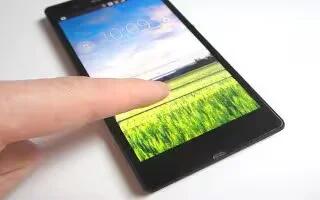
Learn how to use screen lock on your Sony Xperia Z. When your device is on and left idle for a set period of time, the screen darkens to save battery

Learn how to turn on and off your Sony Xperia Z. Make sure that the battery is charged for at least 30 minutes before you turn on the device

Learn how to insert and remove a memory card or SD card on your Sony Xperia Z. Do not insert a micro SIM card into the memory card slot.

Learn how to insert and remove Micro SIM card on your Sony Xperia Z. Insert a fingernail into the gap between the micro SIM card slot cover