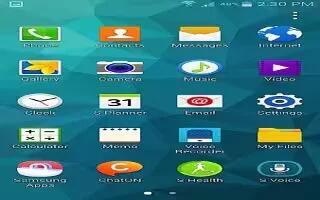
How To Use Messages – Samsung Galaxy S5
Learn how to use Messages on your Samsung Galaxy S5. Your default Messaging app provides the following message types.
Apple, Gadgets, Android, Microsoft
Learn how to Delete Contacts on your Samsung Galaxy S5. You can copy, delete, and view the memory status for the Phone and SIM contacts on your phone.
Learn how to copy contacts to phone on your Samsung Galaxy S5. You can copy, delete, and view the memory status for the Phone and SIM contacts on your phone.
Learn how to Copy Contacts To SIM Card on your Samsung Galaxy S5. You can copy, delete, and view the memory status for the Phone and SIM contacts.
Learn how to use Favorite Contacts on your Samsung Galaxy S5. Once you have stored phone numbers in the Address Book.
Learn how to use Groups on your Samsung Galaxy S5. You can add contact to a group, remove contacts from a group, and create new group.
Learn how to use Address Book Options on your Samsung Galaxy S5. You can access Address Book options while at the main Address Book page.
Learn how to Sync Accounts on your Samsung Galaxy S5. From the Accounts menu you decide if you want applications to synchronize, send, and receive data.
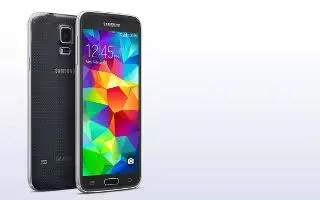
Learn how to Mark Contact as Default on your Samsung Galaxy S5. When you use messaging type applications, the application needs to know which information.
Learn how to Link Contacts on your Samsung Galaxy S5. Many people now maintain multiple email accounts, social networking logins.
Learn how to use Address Book on your Samsung Galaxy S5. Once you have stored phone numbers in the Address Book, you can dial them easily and quickly.
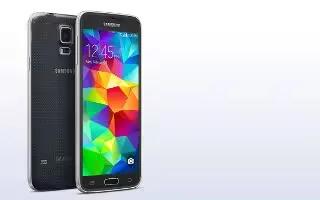
Learn how to use Contacts on your Samsung Galaxy S5. Use the following procedure to add a new contact to your Address Book.
Learn how to Forward Calls on your Samsung Galaxy S5. From the Home screen, tap Call icon > Menu Key > Settings > Call > Additional settings > Call forwarding.
Learn how to use Call waiting on your Samsung Galaxy S5. You can answer an incoming call while you have a call in progress.
Learn how to use 3 Way Calling on your Samsung Galaxy S5. The 3-Way or Multi-Party feature allows you to answer a series of incoming calls.
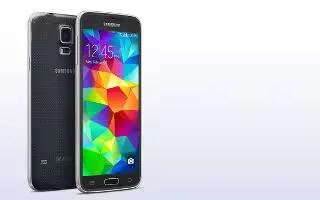
Learn how to Switch Between Calls on your Samsung Galaxy S5. When you have an active call and a call on hold, you may switch between the two calls.
Learn how to use Call Options on your Samsung Galaxy S5. Your phone provides a number of control functions that you can use during a call.
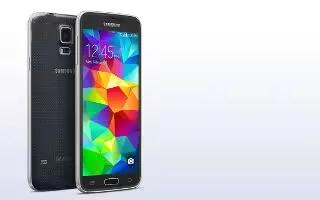
Learn how to use Call Duration on your Samsung Galaxy S5. From the Home screen, tap Call icon > Logs icon.