How To Switch On – Samsung Galaxy Alpha
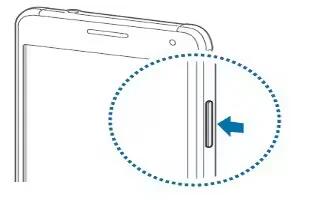
Learn how to switch on your Samsung Galaxy Alpha. Press and hold the Power button for a few seconds to turn on the device.
Apple, Gadgets, Android, Microsoft
Learn how to switch on your Samsung Galaxy Alpha. Press and hold the Power button for a few seconds to turn on the device.
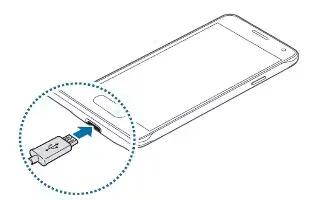
Learn how to charge battery on your Samsung Galaxy Alpha. Use the charger to charge the battery before using it for the first time.
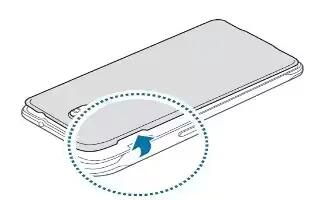
Learn how to insert SIM card on your Samsung Galaxy Alpha. Insert the SIM or USIM card provided by the mobile telephone service provider, and the included battery.
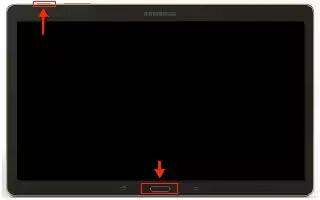
Learn how to take screenshot on your Samsung Galaxy Tab S. There are two methods in Samsung Galaxy Tab S to capture the screen.
Learn how to improve battery life on your Samsung Galaxy Tab S. You can also use power saving mode to extend the battery performance of your tablet.
Learn how to troubleshoot on your Samsung Galaxy Tab S. Some situations may not apply to your device.
Learn how to manage accessibility settings on your Samsung Galaxy Tab S. Export the current accessibility settings in a file.
Learn how to use assistant menu on your Samsung Galaxy Tab S. You can use the icon to access apps, features, and settings by tapping assistive menus in the icon.
Learn how to use accessibility settings on your Samsung Galaxy Tab S. Use this feature to change the font size.
Learn how to enter text by voice on your Samsung Galaxy Tab S. To display the keyboard, tap the text input field, and then tap anywhere on the screen twice quickly.
Learn how to enter text using keyboard on your Samsung Galaxy Tab S. To display the keyboard, tap the text input field, and then tap anywhere on the screen twice quickly.
Learn how to configure text to speech settings on your Samsung Galaxy Tab S. Change the settings for text-to-speech features such as languages, speed, and more.
Learn how to configure TalkBack settings on your Samsung Galaxy Tab S. Configure settings for TalkBack for your convenience.
Learn how to configure finger gesture settings on your Samsung Galaxy Tab S. You can perform actions such as, returning to the previous screen and more.
Learn how to control screen with finger gestures on your Samsung Galaxy Tab S. You can use various finger gestures to control the screen while you are using TalkBack.
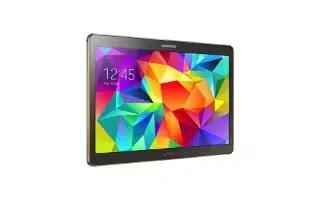
Learn how to use TalkBack on your Samsung Galaxy Tab S. When you activate TalkBack, the device reads aloud the text on the screen or selected features.
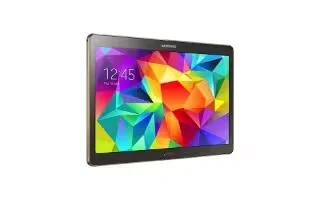
Learn how to use s voice settings on your Samsung Galaxy Tab S. Change settings for voice recognition.
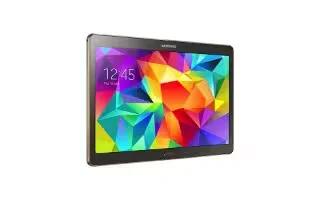
Learn how to use S Planner settings on your Samsung Galaxy Tab S. Change settings for using S Planner.