How To Take Screenshot – Android Lollipop
You can take a screenshot on devices running Android Lollipop using a simple method. To take a screenshot from Nexus or Google Play edition devices and other devices.
Apple, Gadgets, Android, Microsoft
You can take a screenshot on devices running Android Lollipop using a simple method. To take a screenshot from Nexus or Google Play edition devices and other devices.
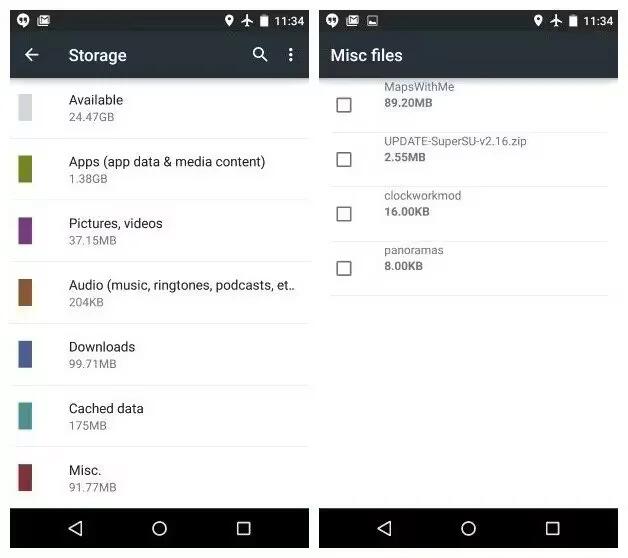
Android 5.0 Lollipop makes it easy to store and browse through pictures, videos, and other files on your device and attach them to an email, Hangout message, and so on.
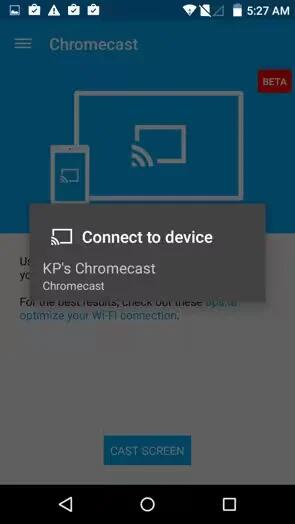
Chromecast is a small device that plugs into the back of your TV. It allows you to send videos and music straight from your phone or tablet to your TV.
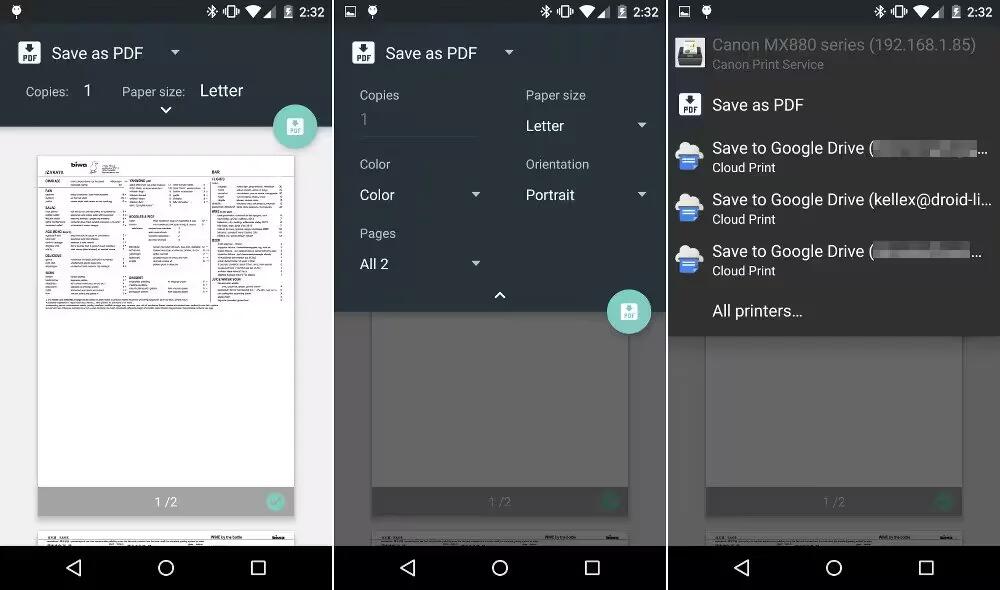
With Android 5.0, you can preview and print the content of certain screens (such as web pages displayed in Chrome) to a printer on the same Wi-Fi network as your Android device.
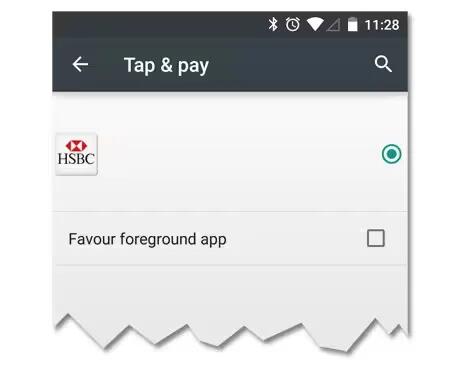
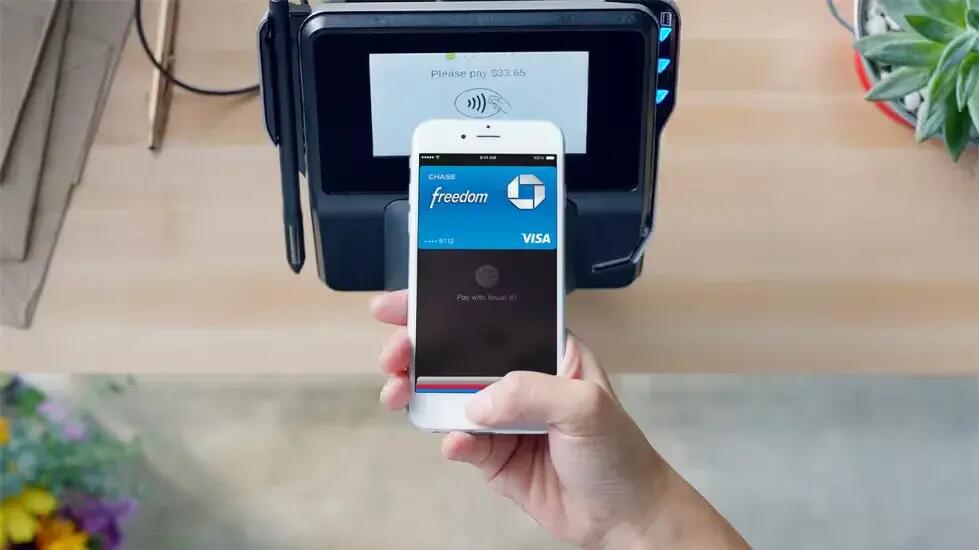
When NFC is turned on, you can use the Tap & pay feature to pay for items just by touching your phone to a reader at a register. To manage your Tap & pay apps.
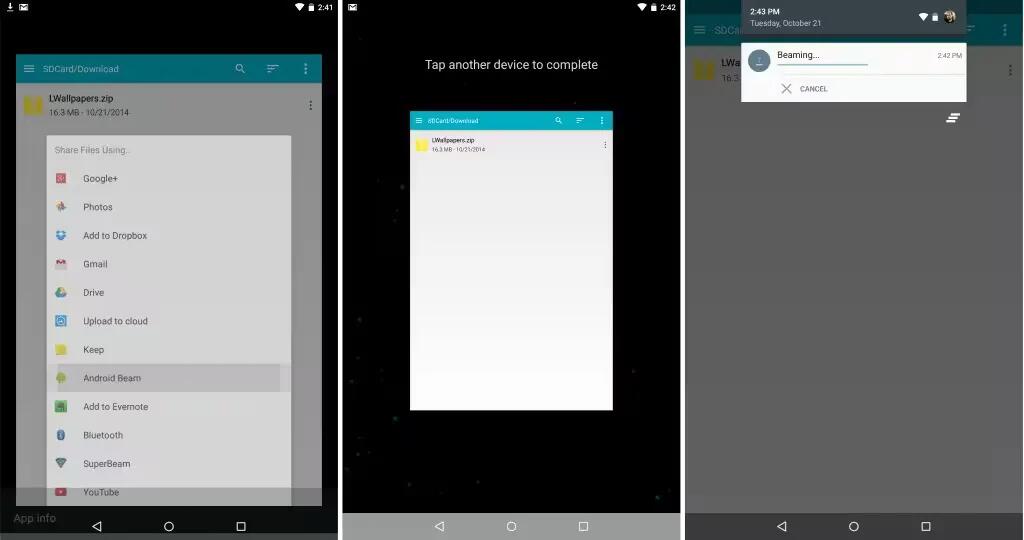
You can instantly send, or beam, a web page, a video, or other content from your screen to another device by bringing the devices together (typically back to back).
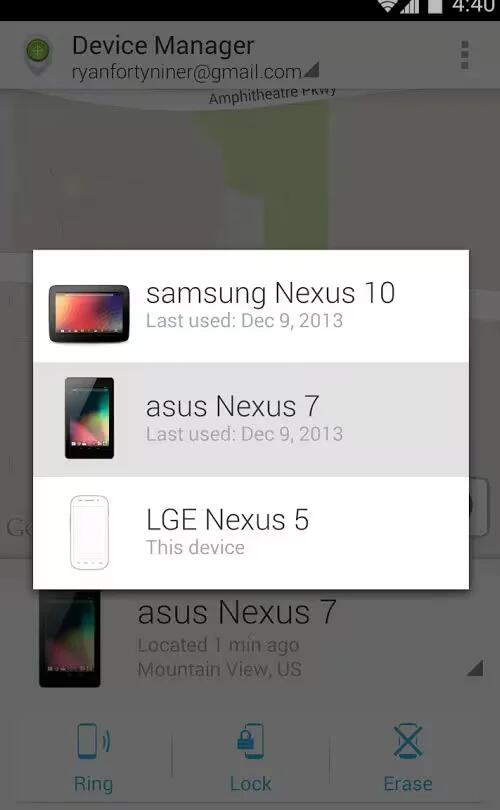
If you lose your phone or tablet using Android Lollipop, the Android Device Manager can help you find its approximate location, make it ring, lock it, or erase its data.
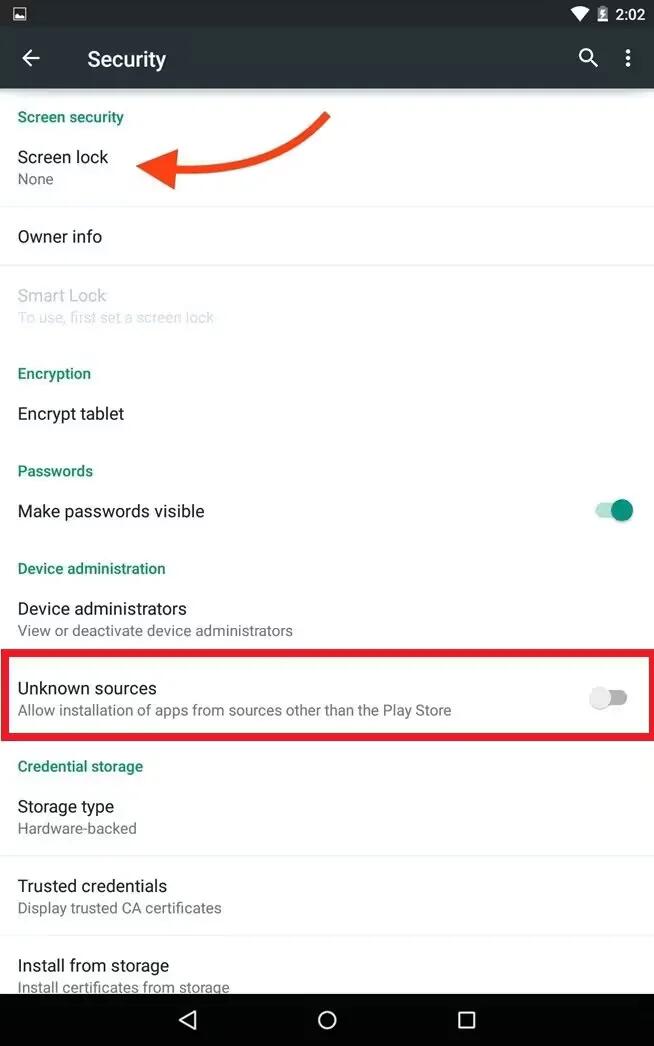
Apps from Google Play are always verified by Google to protect you and your device from harm. By default, your device doesn’t allow the installation of apps from sources other than Google Play.
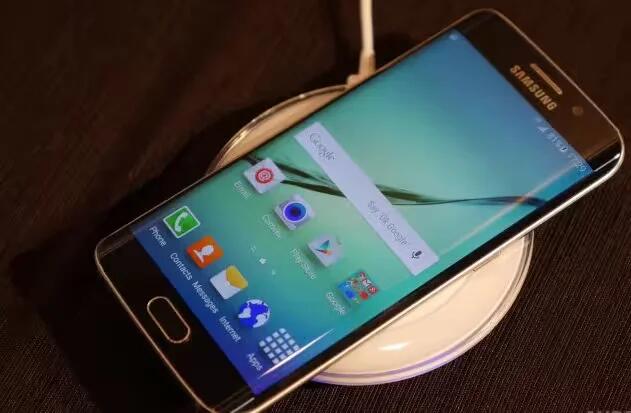
Samsung’s latest flagship smartphones, the Galaxy S6 and S6 edge, both have built-in wireless charging capabilities, Samsung introduced a brand new wireless charging pad for them.
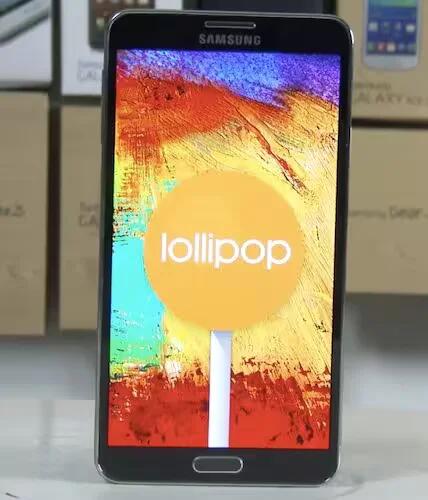
The T-Mobile version of the Samsung Galaxy Note 3 has received Android 5.0 Lollipop. The update brings the Material Design of Lollipop, Lock Screen notifications, the new “Recent Apps” menu.
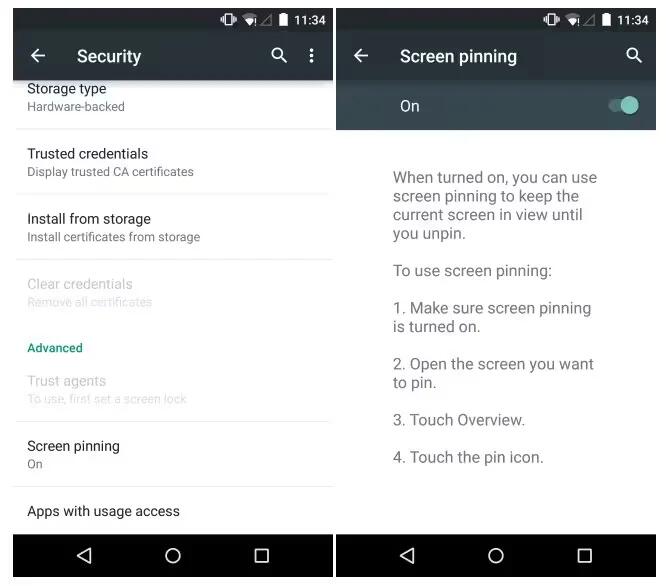
You can enable your device to only show a certain app’s screen using screen pinning. Screen pinning can be handy if you want to play a game without accidentally minimizing the app if you touch the Home button. Some apps may ask you if you want to use screen pinning.
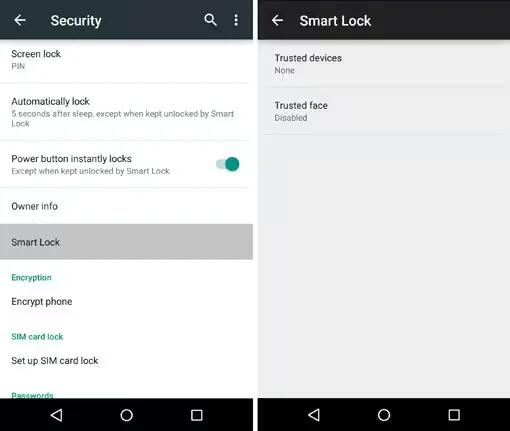
You can turn on Smart Lock to keep your device unlocked when it’s clear that you have it with you – for example, when it’s connected to your Bluetooth watch or when it recognizes your face.
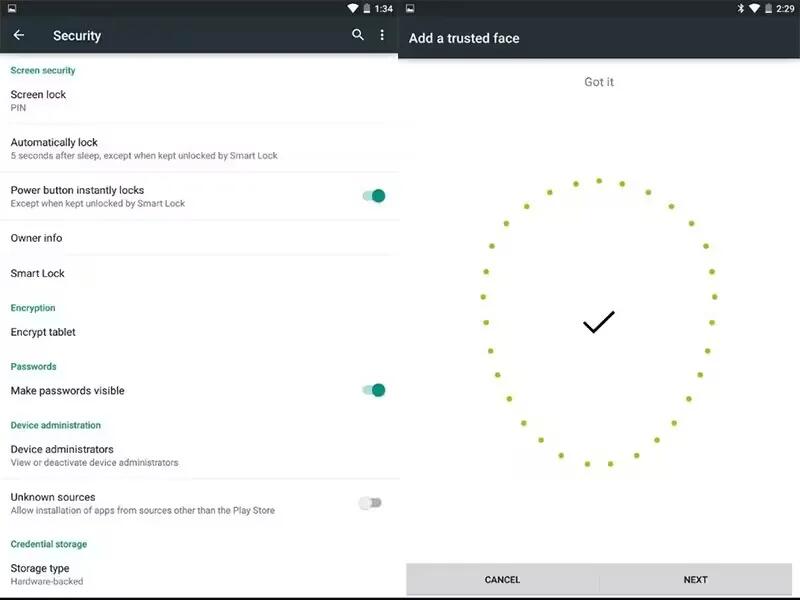
You can set your device to stay unlocked while connected to a Bluetooth device – like a watch, fitness tracker, headset, or car speaker system. You can also set your device to unlock when it touches an NFC tag and your face matching as well.
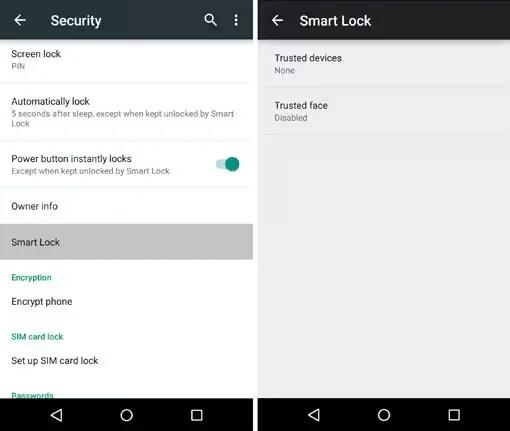
You can customize security settings on your devices running Android Lollipop. If a lock is set for your screen, the screen goes dark and locks when the display goes to sleep or if you press the Power button.
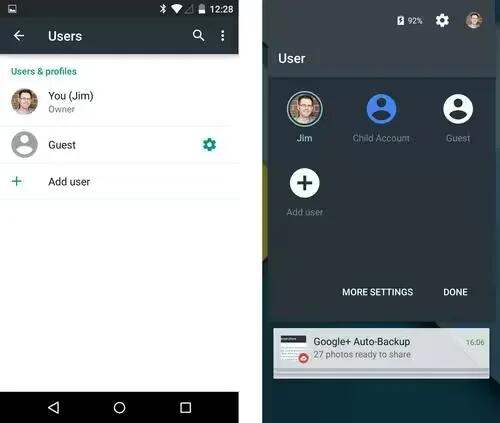
You can easily share your device with family and friends by creating a separate user for each person. Each person has their own space on the device for custom Home screens, accounts, apps, settings, and more. You must be the device owner to add users.
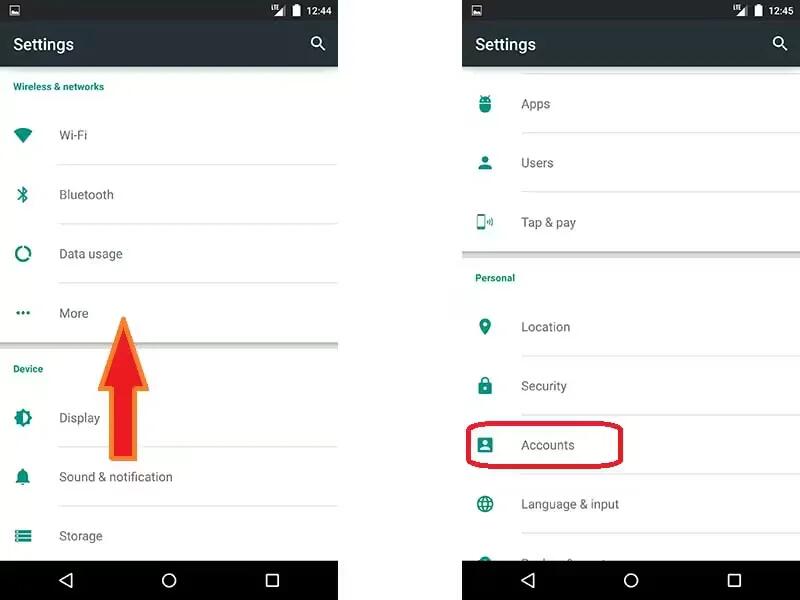
You can add accounts so that information associated with that account automatically syncs with your device. You’ll need to set up an account on your device if you want to get email or get apps on Google Play.
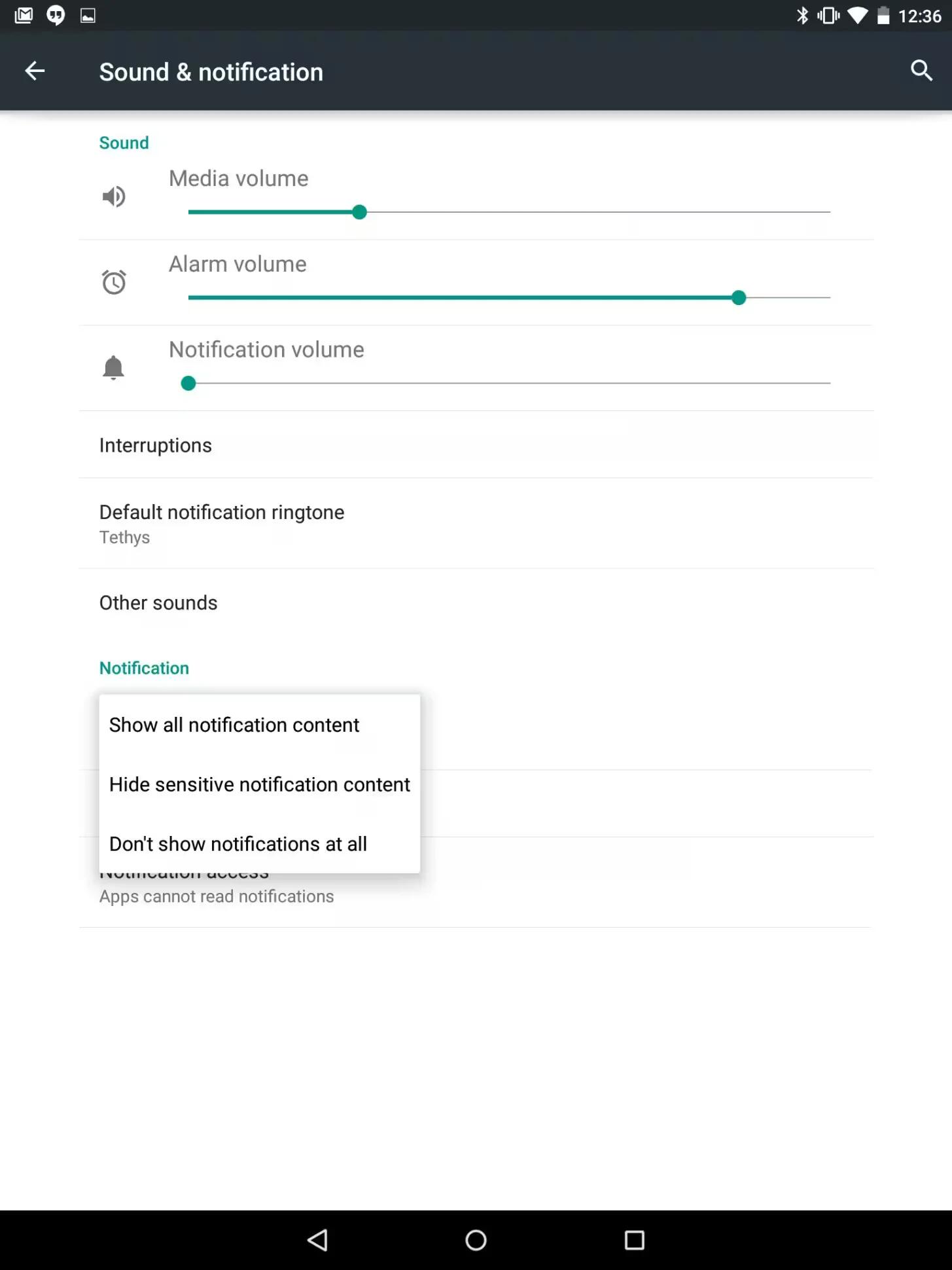
You can change sound settings for both your system sound and notifications on devices running Android Lollipop.
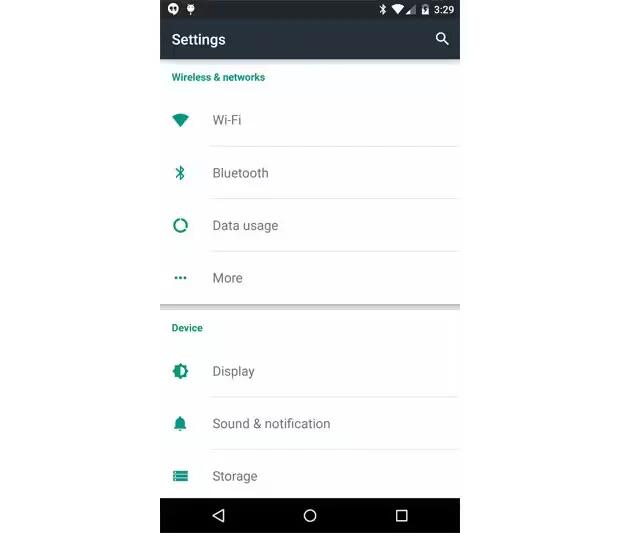
You can change display settings on your devices running Android Lollipop. Change the display settings on your device by following the steps below.