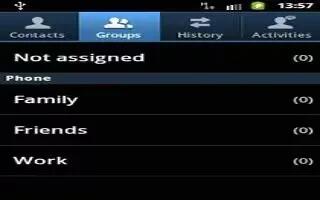
How To Use Groups – Samsung Galaxy Note 3
Learn how to use groups on your Samsung Galaxy Note 3.you can add, remove contacts into a group,create and edit a group.
Apple, Gadgets, Android, Microsoft
Learn how to use groups on your Samsung Galaxy Note 3.you can add, remove contacts into a group,create and edit a group.
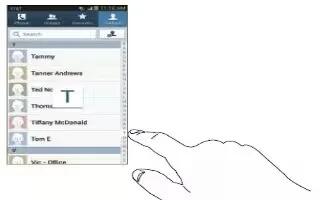
Learn how to use contacts on Samsung Galaxy Note 3. This section allows you to manage your daily contacts by storing their name and number.
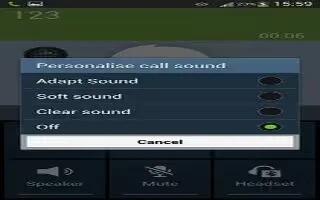
Learn how to use call options on Samsung Galaxy Note 3. Your phone provides a number of control functions that you can use during a call.

Learn how to use address book on your Samsung Galaxy Note 3. Once you have stored phone numbers in the Address Book, you can dial them.

Learn how to use 3 way calling on Samsung Galaxy Note 3. The 3-Way or Multi-Party feature allows you to answer a series of incoming calls.
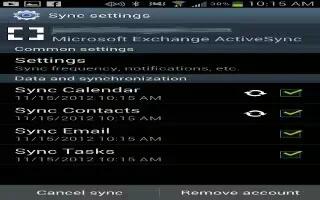
Learn how to sync accounts on your Samsung Galaxy Note 3. From the Accounts menu you decide if you want apps to sync, send, and receive.

Learn how to switch between calls on your Samsung Galaxy Note 3. When you have an active call and a call on hold, you may switch between.
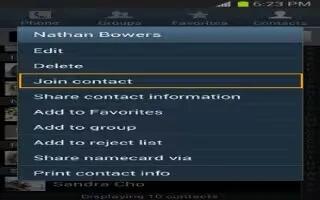
Learn how to link Contacts on your Samsung Galaxy Note 3. Many people now maintain multiple email accounts, social networking logins.
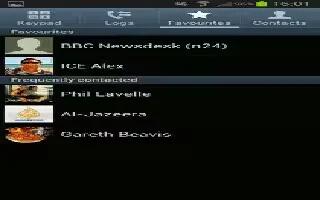
Learn how to edit contacts on your Samsung Galaxy Note 3. When editing an existing contact, you can tap a field and change or delete.
Learn how to customize address book options on Samsung Galaxy Note 3. You can access Address Book options while at main Address Book page.
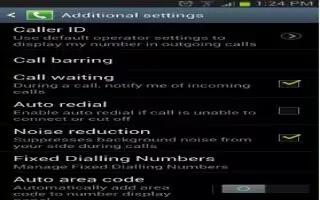
Learn how to configure call waiting on Samsung Galaxy Note 3. This feature allows you to answer a call while you have a call in progress.
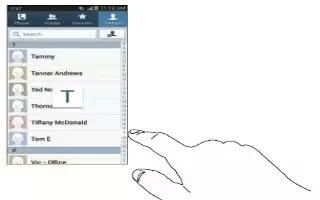
Learn how to add pauses to contacts on Samsung Galaxy Note 3. When you call automated systems, you are often required to enter a password.

Learn how to make emergency calls on Samsung Galaxy Note 3. If you do not have a SIM card installed the first time you turn on the phone.

Learn how to make calls on Samsung Galaxy Note 3.This section describes how to make or answer a call. It includes features, functionality.
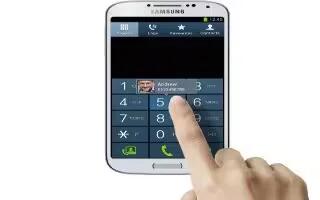
Learn how to make a call using speed dial on your Samsung Galaxy Note 3. You can assign a short cut number to a phone number in Contacts.

Learn how to format memory card on Samsung Galaxy Note 3. Your device lets you use a microSD or microSDHC card to expand available memory.
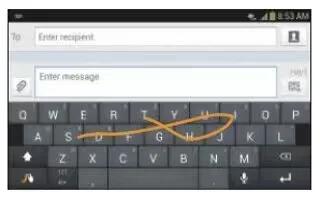
Learn how to enter text using Swype on Samsung Galaxy Note 3. Swype is a text input method that allows you to enter word by sliding finger.
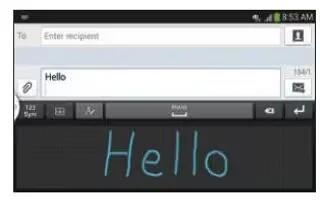
Learn how to enter text using handwriting on your Samsung Galaxy Note 3. You can enter text simply by using your finger to handwrite.