Download PDF Files To iPad
Download PDF Files To iPad
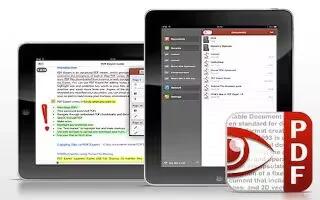
You can download and read the PDF files to your iPad, follow the simple steps below
- First thing youll need is an app that reads PDF files. There are many in the App Store to choose from, I like PDFReaderLite iPad Edition because its good and its free. Download it and install it on the iPad.
- Plug your iPad to the computer with iTunes you normally sync with.
- Click on your iPad from the menu.
- Select Apps from the top menu.
- Scroll down until you reach the File Sharing section. Click on the PDF application.
- You will notice a section on the right-hand side. This is where you will download the PDF files from your computer to the iPad. Click on the Add button near the bottom. Browse for the PDF file(s) on your computer and click Open. The files should automatically be downloaded to the iPad.
- Tap on your PDF reader application from the iPad and enjoy.





 RSS - All Posts