How To Use Stopwatch – Samsung Gear 2
Learn how to use Stopwatch on your Samsung Gear 2. Use this application to measure the amount of elapsed time.
Apple, Gadgets, Android, Microsoft
Learn how to use Stopwatch on your Samsung Gear 2. Use this application to measure the amount of elapsed time.
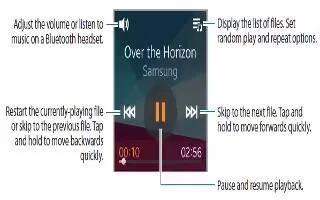
Learn how to use Music Player on your Samsung Gear 2. Use this application to listen to music saved on the Gear 2.
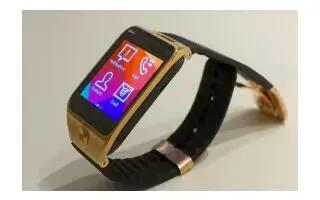
Learn how to use S Health on your Samsung Gear 2. Use the pedometer, sleep, exercise, and heart rate applications for leisure, well-being and fitness purposes.
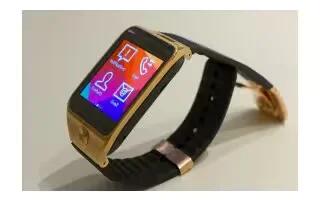
Learn how to Find My Device on your Samsung Gear 2. If you misplace the Gear 2, the Gear Manager can help you find it.
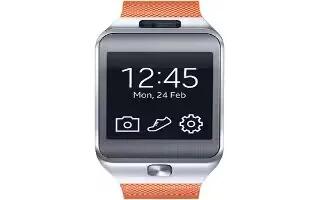
Learn how to Configure Weather on your Samsung Gear 2. Use this application to view weather information on the Gear 2 for the locations.
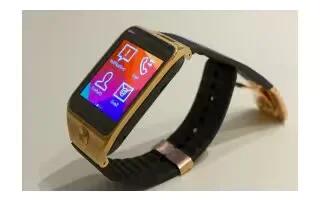
Learn how to use Gallery on your Samsung Gear 2. Use this application to view images and videos.
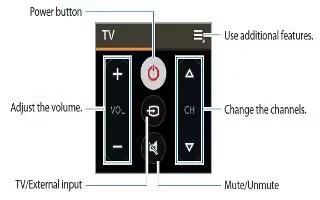
Learn how to use WatchON Remote on your Samsung Gear 2. Use this application to operate the Gear 2 as a remote control for other devices.
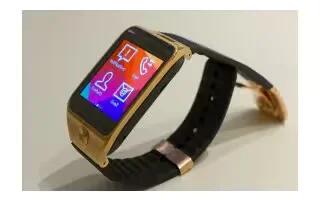
Learn how to Upgrade With Samsung Kies on your Samsung Gear 2. The Gear can be upgraded to the latest software.
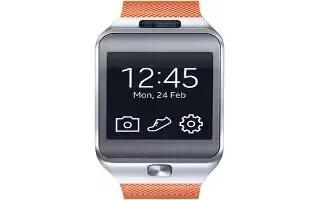
Learn how to Upgrade With Gear Manager on your Samsung Gear 2. The Gear can be upgraded to the latest software.
Learn how to Transfer Files on your Samsung Gear 2. Move audio, video, images, or other types of file from a computer to the Gear 2, or vice versa.
Learn how to use Notifications on your Samsung Gear 2. Stay up-to-date with a variety of events, such as missed calls or new messages.
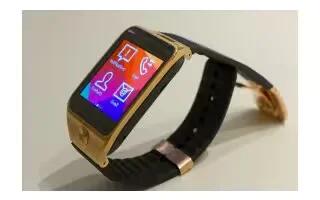
Learn how to Make Calls on your Samsung Gear 2. On the Home screen, tap Dialer, enter a number using the keypad, and then tap to make a call.
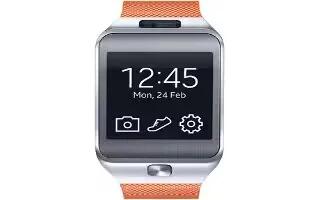
Learn how to use Security Settings on your Samsung Gear 2. Prevent others from using or accessing personal data and information stored to the Gear 2.
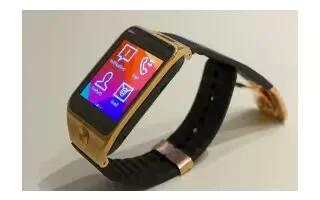
Learn how to use App Screen on your Samsung Gear 2. The Apps screen displays icons for all applications.
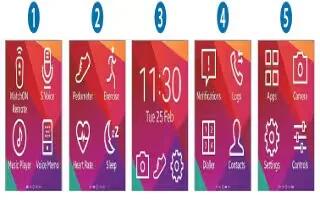
Learn how to use Home Screen on your Samsung Gear 2. When you connect your Gear 2 to the mobile device you can view the devices Home screen.
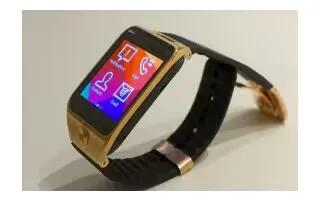
Learn how to use Gestures on your Samsung Gear 2. Use only fingers to use the touch screen.
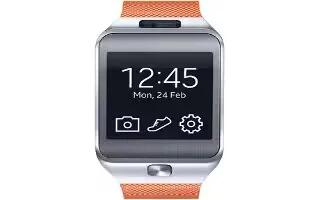
Learn how to use Settings on your Samsung Gear 2. When not in use, lock the Gear 2 to prevent unwanted operation.