How To Use App Shortcut On Samsung Galaxy Tab 2
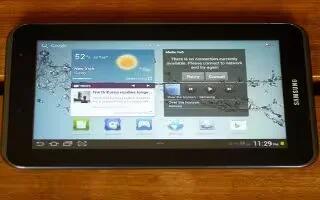
How To Use App Shortcut On Samsung Galaxy Tab 2
Use App Shortcuts for quick access to applications or features, such as Email or other applications.
- Navigate to the Home screen on which you want to place the App Shortcut.
- Touch Apps.
or
- Touch and hold on the screen until the Home screen options pop-up displays.
- Touch Add to Home screen > Apps and widgets.
- Touch the Apps tab.
- Touch and hold the application icon, then slide your finger where you want to place the icon and release it.
- Touch and hold the App Shortcut and then drag the application icon to reposition it on the Home screen.
How to remove App Shortcuts on Samsung Galaxy Tab 2
- Touch and hold the App Shortcut until Delete displays at the top of the screen, and then drag the App Shortcut to the Delete icon.
Note
This article will work on both Samsung Galaxy Tabs; including Samsung Galaxy Tab 2 7.0 and Samsung Galaxy Tab 2 10.1.





 RSS - All Posts